Nocebo Launcher: Transform Your Android Home Screen with a Unique Spinning Layout
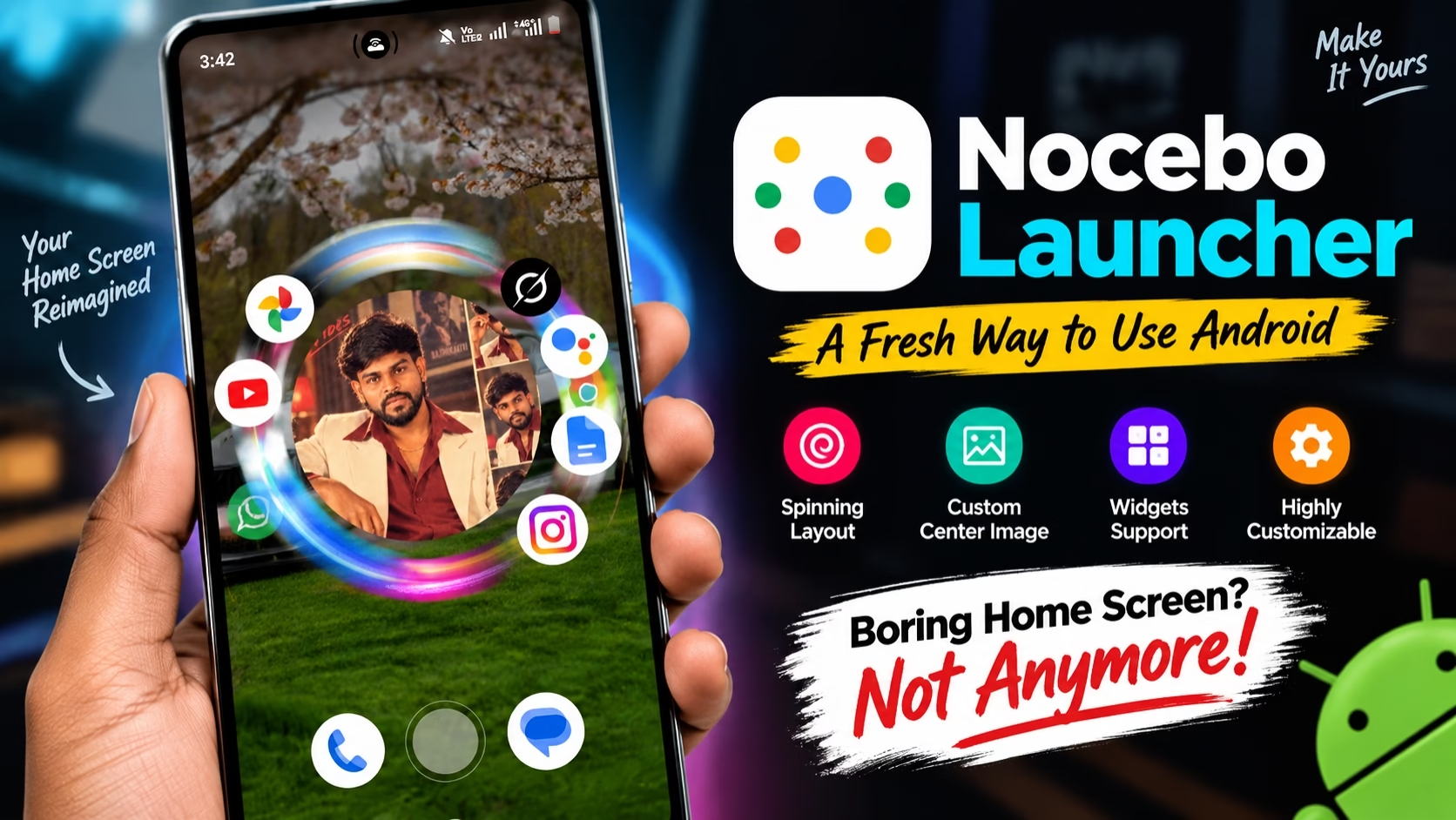
If you are bored with the same old Android home screen, Nocebo Launcher is an interesting app worth trying. Instead of showing your apps in the usual grid-style layout, this launcher gives your home screen a completely different look with a spinning and customizable interface.
The app is designed for users who enjoy customizing their smartphones and want something different from the standard Android launcher. With its circular app arrangement, customizable center area, widgets, folders, and other options, Nocebo Launcher can give your phone a fresh and futuristic appearance.
What is Nocebo Launcher?
Nocebo Launcher is a third-party Android launcher that replaces your phone’s default home screen with a unique interactive interface.
Most Android launchers arrange apps in rows and columns. Nocebo takes a different approach by using a spinning layout, where app icons can be arranged around a central area. This makes accessing applications feel more interactive compared with a traditional launcher.
The launcher is particularly interesting for people who like experimenting with their phone’s appearance rather than sticking with the default Android interface.
The Spinning Home Screen is the Main Highlight
The biggest attraction of Nocebo Launcher is its unique spinning layout.
Instead of having a fixed app grid, frequently used applications can be displayed around a circular interface. The icons can move around the center, creating a visually different way of accessing apps.
As shown in the screenshots, the home screen can have a large image in the middle with application icons arranged around it. This gives the entire screen a clean but futuristic appearance.
It is also something that can make your smartphone stand out from other Android devices.
Add Your Own Image to the Center
One of the coolest customization options is the ability to personalize the center of the launcher.
You can use an image or other visual element in the middle of the spinning layout. For example, you could use your own photo, a favorite character, a logo, or any other image that matches your style.
This makes the launcher more personal instead of looking like a standard Android home screen.
In the screenshots, the center area is being used with a personal photo, while the application icons are positioned around it. The result looks more like a customized home-screen design than a traditional launcher.

Organize Your Apps Your Way
Nocebo Launcher also focuses on app organization.
Instead of simply placing applications on different home-screen pages, users can arrange their apps according to their preferences. Frequently used applications can be kept easily accessible, while other apps can be organized into folders.
The launcher also supports features such as drag-and-drop organization, custom folders and widgets, making it possible to build a home screen that matches your daily usage.
This can be useful if you have a large number of applications installed on your phone.
Widgets Support
Widgets are another important part of a modern Android home screen, and Nocebo Launcher supports them as well.
You can add useful widgets such as weather, clock, calendar and other compatible widgets depending on your requirements.
This means you don’t have to choose between customization and useful information. You can create a home screen that looks unique while still keeping important information available at a glance.
However, widget placement may feel different from a traditional launcher because of the circular design.
A Different Approach to Android Customization
The main reason to try Nocebo Launcher is not necessarily because you need another app drawer. Its main purpose is to provide a different way of interacting with your Android phone.
If you prefer a simple grid with predictable icon placement, a traditional launcher may feel more comfortable.
But if you enjoy experimenting with wallpapers, app layouts, animations, widgets and personalized designs, Nocebo Launcher gives you plenty of room to create something different.
The spinning interface can also make your home screen look more dynamic and modern.
Is Nocebo Launcher Easy to Use?
Getting started with the launcher is similar to using other third-party Android launchers. After installation, you need to set it as your default home launcher.
Once it is active, you can start customizing the layout and adding your preferred applications and widgets.
There may be a small learning curve because the interface is different from the standard Android launcher. Once you understand how the spinning layout works, navigating through the home screen becomes much easier.
Privacy and Permissions
Before installing any third-party launcher, it is always a good idea to check its permissions and privacy information.
Nocebo Launcher’s Google Play listing includes a Data Safety section where the developer states that the app does not collect or share data. The app may also provide optional functionality that requires special Android permissions, so users should review the permissions requested on their particular device before enabling them.
As with any launcher, it is better to only enable permissions that are necessary for the features you actually want to use.
Final Verdict
Nocebo Launcher is an interesting choice for Android customization lovers. Its biggest advantage is that it moves away from the traditional app-grid design and introduces a unique spinning home-screen experience.
The ability to place an image in the center and arrange applications around it makes the launcher especially interesting for users who want a personalized setup. Support for folders, widgets and app organization adds more flexibility to the experience.
If your Android phone currently feels boring and you want to try something completely different, Nocebo Launcher is worth checking out. It may not be for everyone, but for people who love experimenting with their smartphone’s interface, its spinning layout offers a refreshing alternative to conventional Android launchers.
